デバイスの起動後は:
Option 1
Find and claim the FlightFeeder device through Bluetooth using the FlightAware iOS App or using the FlightAware Configure Page
(Keep in mind, the Bluetooth method will only work for devices with PiAware image flashed on to the SD card, not manually installed.)
Option 2
Manually claim your FlightFeeder device online through your FlightFeeder's IP address.
If using an LCD Screen or if able plug in the Raspberry Pi device into a monitor through an HDMI Cable, the FlightFeeder IP address can be found through the PiAware UI display.
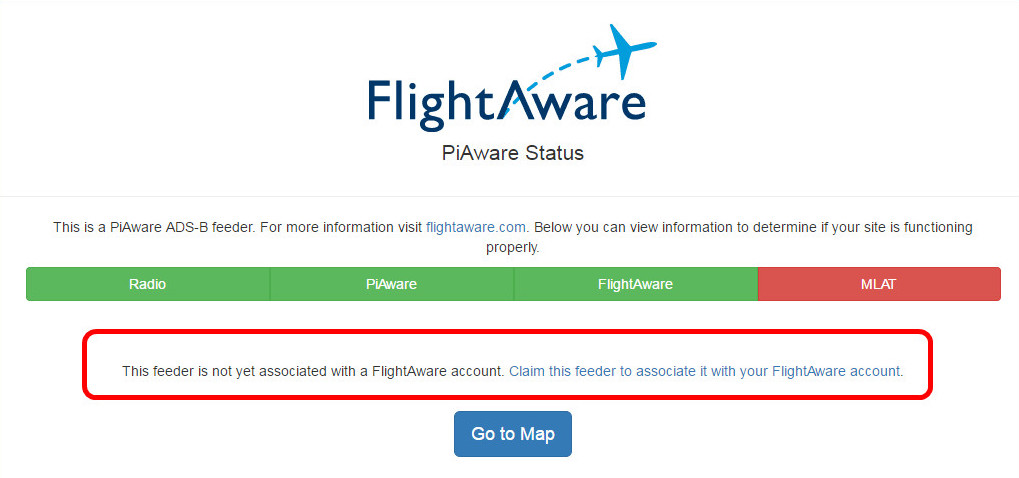
While on your computer, look up the local IP address assigned to your PiAware device through your router/firewall and search for the assigned IP address in a browser on the same network. If the device hasn't been claimed a link to claim the PiAware device will display.
Option 3
If you have command line access you can get the FlightFeeder's unique ID using the command: With the unique ID for the feeder you can enter it into the end of the URL below in place of the x's:
cat /var/cache/piaware/feeder_id
With the unique ID for the feeder you can enter it into the end of the URL below in place of the x's:
https://www.flightaware.com/adsb/piaware/claim/xxxxxxxx-xxxx-xxxx-xxxx-xxxxxxxx
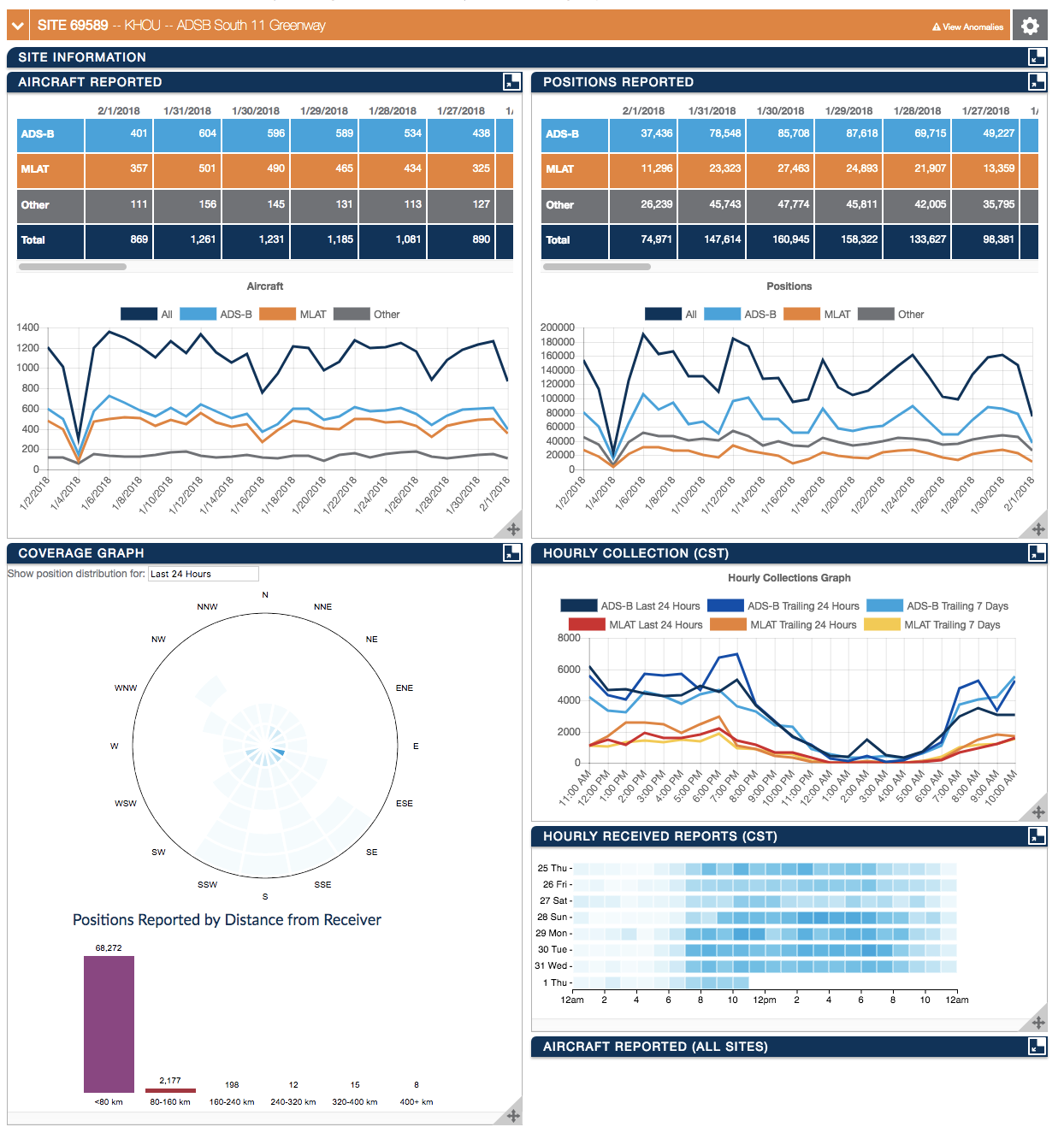
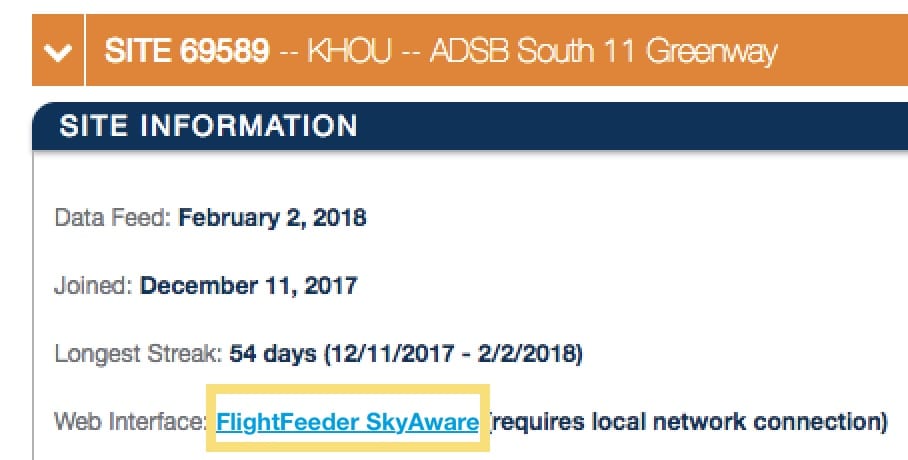
5分経ってもデバイスが割り当てられた通りに表示されない場合は、デバイスを再起動してください。再起動しても解決できない場合は、WiFi設定が正しいことを確認してください(WiFiをお使いの場合)。それでも解決できない場合は、ADSBsupport@FlightAware.comへご連絡ください。(下記リンクの)統計ページで割り当てられたことをご確認ください。